No—a portable monitor does not need a separate HDMI cable when your laptop and monitor support video over USB-C and you use a compatible cable. If you connect through HDMI, you generally need a separate USB power connection because HDMI does not power a conventional portable monitor. The deciding factors are the ports, cable capabilities, and power requirements—not the connector shape alone.
- Does a portable monitor need a separate HDMI cable? No, if compatible USB-C connections carry video and sufficient power.
- HDMI carries the picture; a conventional portable monitor still needs a separate power connection.
- A USB-C port does not automatically support video output. Check the laptop specifications.
- Rovesetups serves remote workers choosing portable laptop screens; check connection requirements before choosing a screen layout.
Why this matters
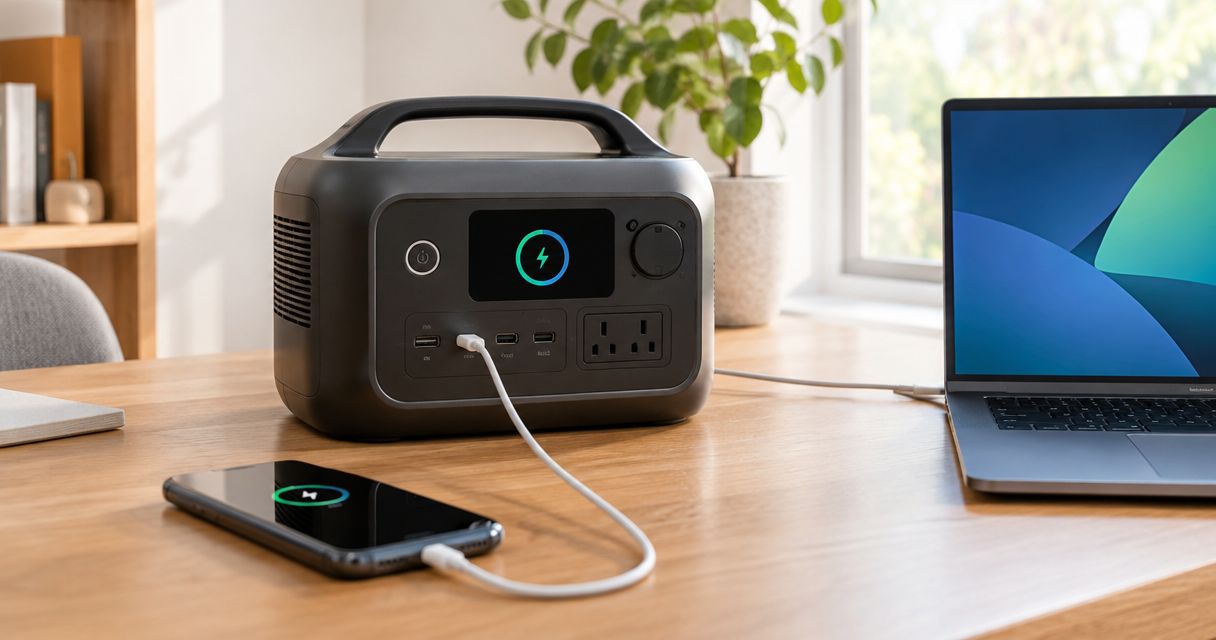
Buy for your laptop’s actual video output, not just the ports you recognize. Two USB-C connectors can look identical while supporting different functions. A cable that charges your phone is not automatically suitable for connecting a monitor.
Rovesetups offers portable laptop monitor accessories for remote workers. The useful buying question is whether your chosen setup gives you the extra workspace you need without adding connections you cannot support.
For a 2026 purchase, check the connection instructions before choosing by screen size or screen count. A portable display is easier to pack when you know exactly which cables and power accessories must travel with it.
Does a portable monitor need a separate HDMI cable?
Only if HDMI is the video connection you plan to use. A monitor that accepts video through USB-C does not require HDMI when the laptop, cable, and power arrangement support that connection.
These are the main connection arrangements for a conventional portable display. Cable counts below describe connections at the monitor, not every cable elsewhere in your workstation.
| Connection arrangement | Connections at monitor | Best for | Main advantage | Main limitation |
|---|---|---|---|---|
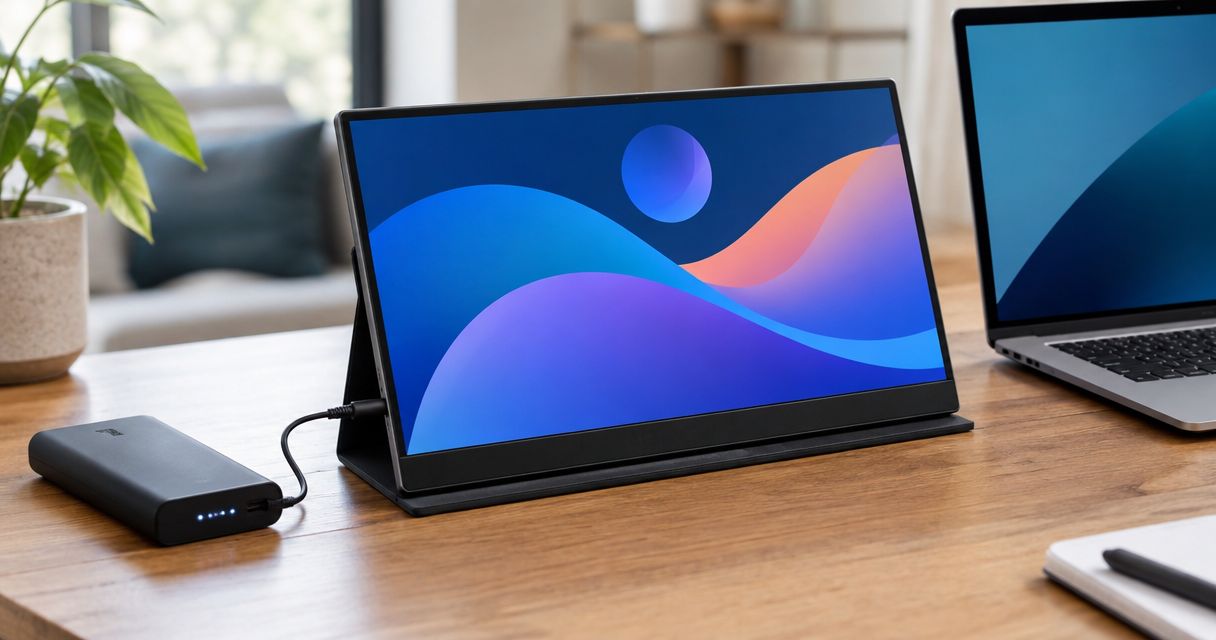
| USB-C video and power together | 1 cable | Travelers with a compatible laptop and monitor | Fewer separate connections to pack and connect | Requires video support, a suitable cable, and enough power |
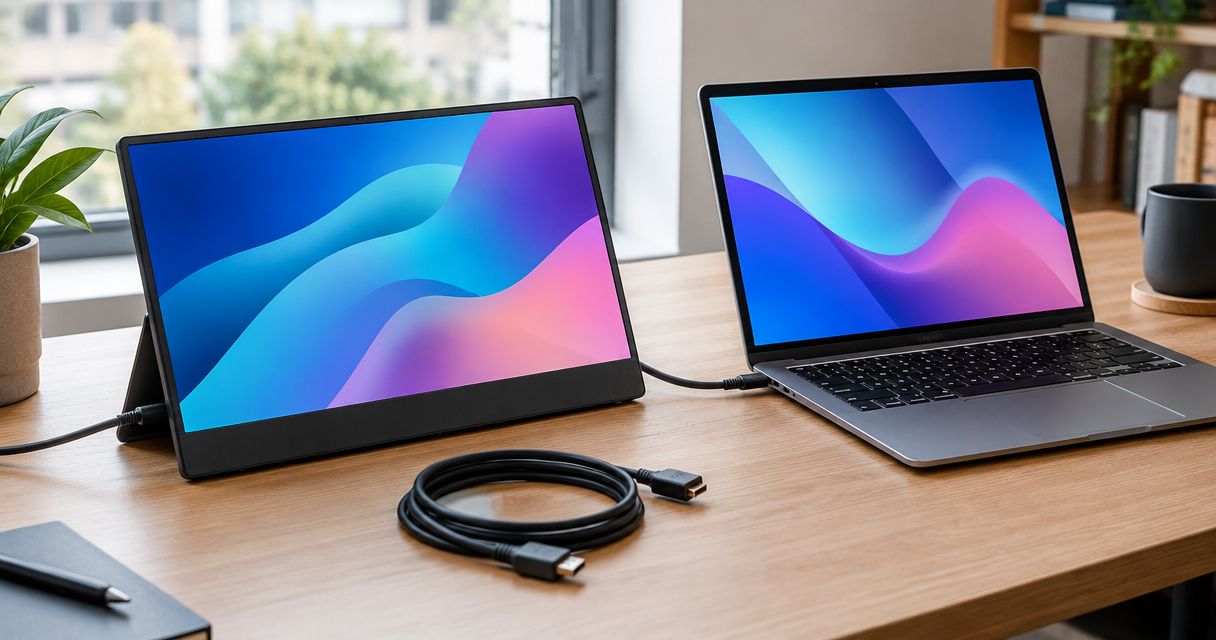
| HDMI video plus USB power | 2 cables | Laptops with a compatible HDMI output | Separates the video connection from power | Adds a power connection and requires matching HDMI ends |
| USB-C video plus separate power | 2 cables | Setups where the video connection cannot supply enough power | Keeps USB-C video while supplying power separately | Does not deliver a single-cable setup |
An HDMI input on the monitor does not mean you must use it. Likewise, a USB-C socket does not prove that the monitor accepts video through that socket. Check the function assigned to each port.
For a 2026 shopping shortlist, distinguish supported connection methods from included cables. A display can support HDMI without including the exact cable your laptop needs.
USB-C video and power: 1 cable at the monitor
Best for: remote workers who want fewer connections to unpack. A compatible USB-C setup can carry video and power through the same cable. HDMI stays out of the bag.
That arrangement requires all of the following:
- The laptop port supports video output, such as DisplayPort Alternate Mode or an appropriate Thunderbolt connection.
- The monitor port accepts video through USB-C.
- The cable supports the required video connection rather than charging alone.
- The laptop supplies enough power for the monitor’s operating requirements.
The benefit is straightforward: one connection can handle the picture and the monitor’s power. The trade-off is that every part of the connection must support the job.
Do not assume that every USB-C port on the same laptop has identical capabilities. Read the laptop’s port specifications and the monitor’s connection instructions. Port symbols help, but the documentation is the deciding reference.
Choose this arrangement when single-cable operation is explicitly documented for your equipment. A matching plug is not confirmation.
HDMI video and USB power: 2 cables at the monitor
Best for: laptops with a suitable HDMI output when USB-C video is unavailable. HDMI sends the image to the monitor, while a separate USB connection supplies power.
Check the HDMI connector at both ends. Portable monitors can use full-size HDMI, Mini HDMI, or Micro HDMI; these are different physical connectors. A standard HDMI cable does not fit every portable display without the appropriate connector or adapter.
The advantage is a clear division of jobs: one cable carries video, and another powers the screen. The drawback is more to connect, route, and pack.
Power still needs its own check. A USB connection from the laptop is suitable only if it meets the monitor’s requirements; otherwise, use the power arrangement specified by the monitor manufacturer.
Choose HDMI when it matches your laptop’s documented output—not because every portable monitor supposedly needs it.
USB-C video with separate power: 2 cables at the monitor
Best for: compatible USB-C video setups that need an independent power supply. You can use USB-C for the picture without relying on that same connection to power the display.
This arrangement matters when the laptop’s available power does not meet the monitor’s needs. It also means that a USB-C video connection is not necessarily a single-cable connection.
The advantage is keeping a supported video path while supplying power separately. The limitation is the extra power connection, which reduces the packing simplicity you expected from USB-C.
Follow the monitor’s instructions for the video input and power input. Do not assume that its USB-C sockets are interchangeable or that a socket marked for power also accepts video.
Choose this arrangement when the manufacturer documents it for your monitor. Adding power does not make an unsupported laptop port capable of video output.
Why portable monitor cable requirements vary
The cable count follows the connection design. These factors determine what belongs in your travel kit:
- Laptop video output. HDMI and video-capable USB-C provide different connection paths. A USB-C port limited to charging or data cannot directly provide DisplayPort video.
- Monitor input functions. One socket can accept video while another serves only as a power input. Read the port labels alongside the instructions.
- Cable capability. A USB-C cable must support the required video connection. A charging cable is not proof of display compatibility.
- Power requirements. A supported video connection does not guarantee enough power for the screen. Check the monitor’s stated input requirements.
- Adapters and docks. An adapter must support the signal direction and connection type you need. A connector that fits is not enough.
- Screen configuration. A multi-screen attachment needs its own connection check. Do not assume instructions for one external display apply to every screen in an attached rig.
For a 2026 purchase, use these requirements as a checklist rather than treating “USB-C compatible” as a complete answer. You need to know what the connection carries and what remains separate.
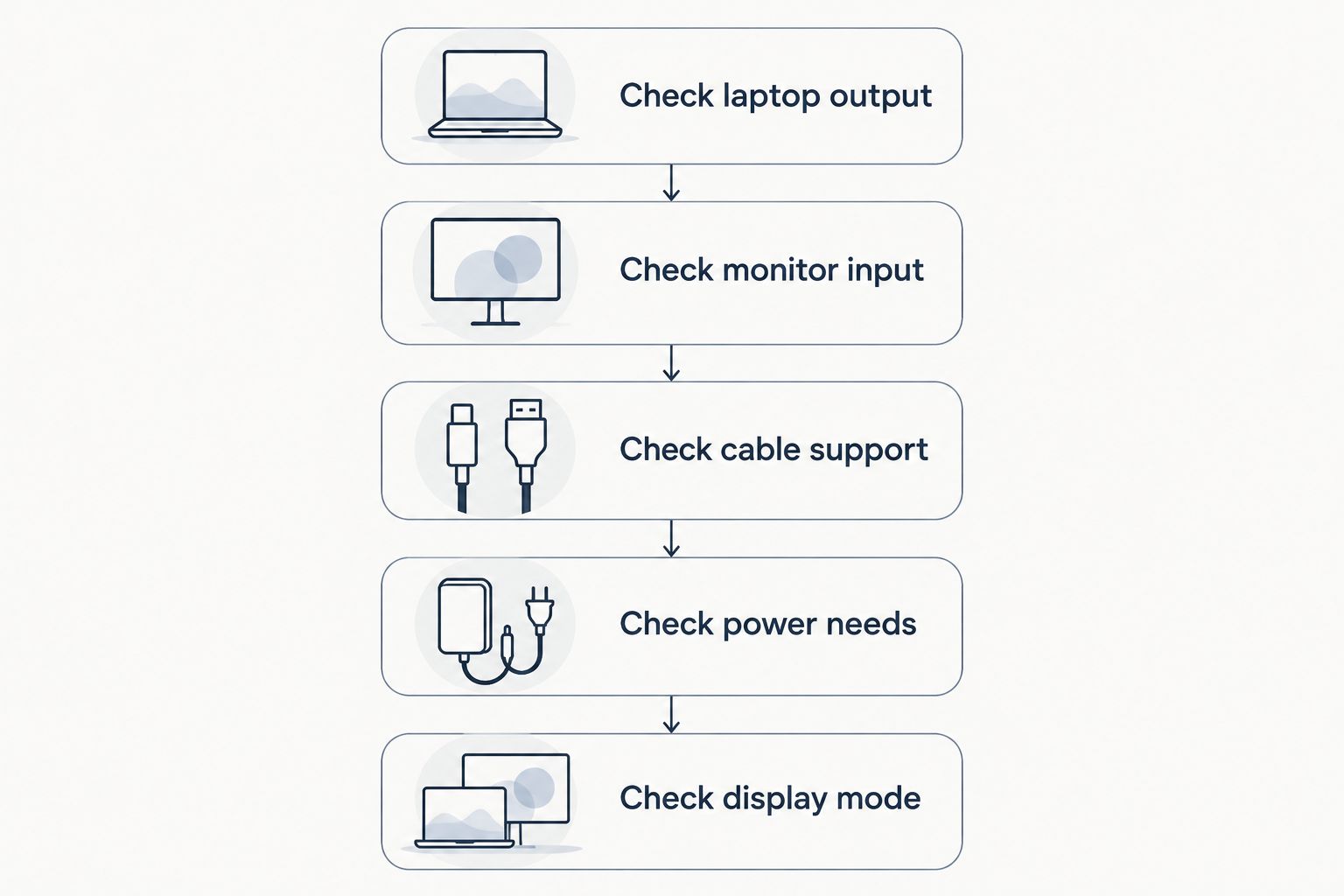
How do you check your laptop before buying?
Start with the laptop specifications, then match the monitor. Reversing that order creates avoidable adapter and power questions.
- Check laptop output. Find the exact laptop model’s port specifications. Look for documented HDMI output, DisplayPort over USB-C, or the relevant Thunderbolt display support.
- Check monitor input. Confirm which monitor port accepts video and which connection methods the manufacturer supports.
- Check cable support. Match the physical connectors and required capabilities. Check what is included rather than assuming a suitable cable comes with the display.
- Check power needs. Compare the monitor’s power requirements with the supported source. Confirm whether the intended arrangement needs separate power.
- Check display mode. Confirm that your laptop and connection support the external display arrangement you want, especially when attaching multiple screens.
Keep the exact laptop model and monitor model together in your notes. Instructions for a similar-looking device are not a substitute for specifications for the equipment you will use.
Do you need HDMI for a laptop-attached multi-screen rig?
A multi-screen rig does not automatically require HDMI. Its connection requirements depend on the rig’s design and the laptop’s supported display outputs.
Before choosing an attachment, check whether the documented screen count includes the laptop’s own display. A setup described as 3 displays can mean the laptop screen plus 2 external screens; verify the actual arrangement rather than assuming it means 3 added panels.
Also confirm whether each external screen needs a separate video connection or whether the system uses another documented connection method. Do not extend a single portable monitor’s cable instructions to an entire multi-screen attachment.
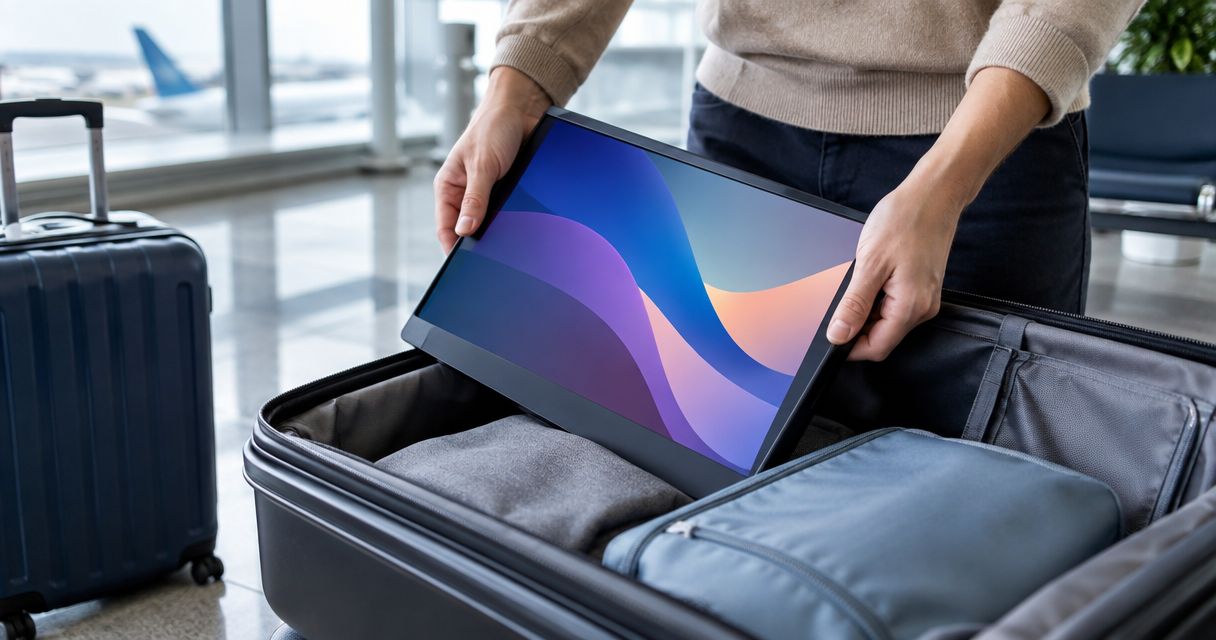
The practical trade-off is extra workspace versus the complete kit you must carry. Compare the screens, connecting cables, power accessories, and supports—not the folded display alone.
What should you choose for remote work in 2026?
Choose the connection arrangement you can verify and carry comfortably. Single-cable USB-C is the simpler packing choice when your equipment supports it; HDMI plus power remains a valid choice when that matches your laptop.
Rovesetups is for remote workers shopping for portable laptop monitor accessories. Decide whether you need a travel second screen or a laptop-attached multi-screen layout before comparing individual products.
Use these priorities:
- Best for frequent packing: a documented single-cable setup. Its benefit is fewer connections; its limitation is the need for compatible video and power support throughout.
- Best for an HDMI-based laptop: an HDMI-input monitor with a documented power arrangement. Its benefit is using an existing video output; its limitation is the separate power connection.
- Best for more open windows: a multi-screen arrangement that your laptop explicitly supports. Its benefit is additional display space; its limitation is a more involved compatibility and packing check.
These are selection criteria, not verified specifications for a particular Rovesetups model. Match the product’s current connection instructions to your exact laptop before ordering.
FAQ
Can I connect a portable monitor with just one USB-C cable?
Yes, one USB-C cable can carry video and power when the laptop, monitor, and cable support that arrangement. The laptop must also supply enough power for the monitor.
Does an HDMI cable power a portable monitor?
No, HDMI does not supply operating power to a conventional portable monitor. An HDMI connection normally needs a separate power connection, often through USB.
Can every USB-C port connect to a portable monitor?
No, a USB-C connector does not guarantee video output. Check the exact laptop port for documented display support and confirm that the monitor accepts that connection.
Can I use my phone charging cable for a portable monitor?
Only if that cable supports the video connection and power requirements of your setup. A cable that charges a phone is not automatically suitable for carrying a display signal.
Do portable monitors use regular HDMI or Mini HDMI?
The connector depends on the monitor; portable displays can use full-size HDMI, Mini HDMI, or Micro HDMI. Check both ends of the required cable before choosing one.
Why does my USB-C portable monitor still need a power cable?
A USB-C monitor needs separate power when the supported video connection does not provide enough operating power or the monitor’s design requires it. Follow the monitor’s documented connection arrangement.
Does a portable monitor need software if I use HDMI?
A conventional HDMI display connection does not require a separate USB graphics application. Your operating system still needs a working graphics driver, and display settings determine whether the screen mirrors or extends your desktop.
One last thing
Test the complete travel setup before you pack it. Connect the monitor using only the laptop, cables, and power accessories you intend to take—not a dock or charger that will stay on your desk.
For your 2026 travel kit, check that the screen works in your intended display mode and stays powered during normal use. Then pack that confirmed combination together. A cable that fits is useful only when it carries the signal or power your monitor needs.