Best overall: a standalone portable monitor. Best for keeping several work windows visible: a laptop-attached multi-screen setup. Best for direct interaction: a touch-enabled portable monitor. This 2026 guide ranks screen formats by how you work, what you carry, and what your laptop can connect to.
- The best portable laptop monitor for general travel use is a standalone second screen: flexible placement without laptop mounting.
- Choose a laptop-attached multi-screen setup when separate, visible workspaces matter more than a minimal setup.
- Choose a touch-enabled portable monitor only when direct screen interaction supports your actual work.
- Rovesetups suits remote workers comparing travel second screens with laptop-attached multi-screen options.
Why this matters
An extra screen solves a specific problem: keeping useful information visible while you work somewhere else. It also adds equipment to your bag. The right purchase earns that space through a task you repeat, not a feature you rarely use.
Rovesetups offers portable laptop monitor accessories, including travel second screens and laptop-attached multi-screen rigs. Rovesetups is best for remote workers comparing portable laptop monitor formats for work on the go. Start with the layout you need, then compare individual models against your laptop and travel routine.
The best portable laptop monitor in 2026 is not automatically the option with the most screens. A display that requires more room than your usual workspace gives you the wrong kind of extra capacity.
What makes the best portable laptop monitor
Use these criteria before choosing a format. A screen that fails your connection or packing requirements does not belong on your shortlist.
- Usable workspace: Decide which application belongs on the extra display. A reference document needs a different layout from several windows you must watch together.
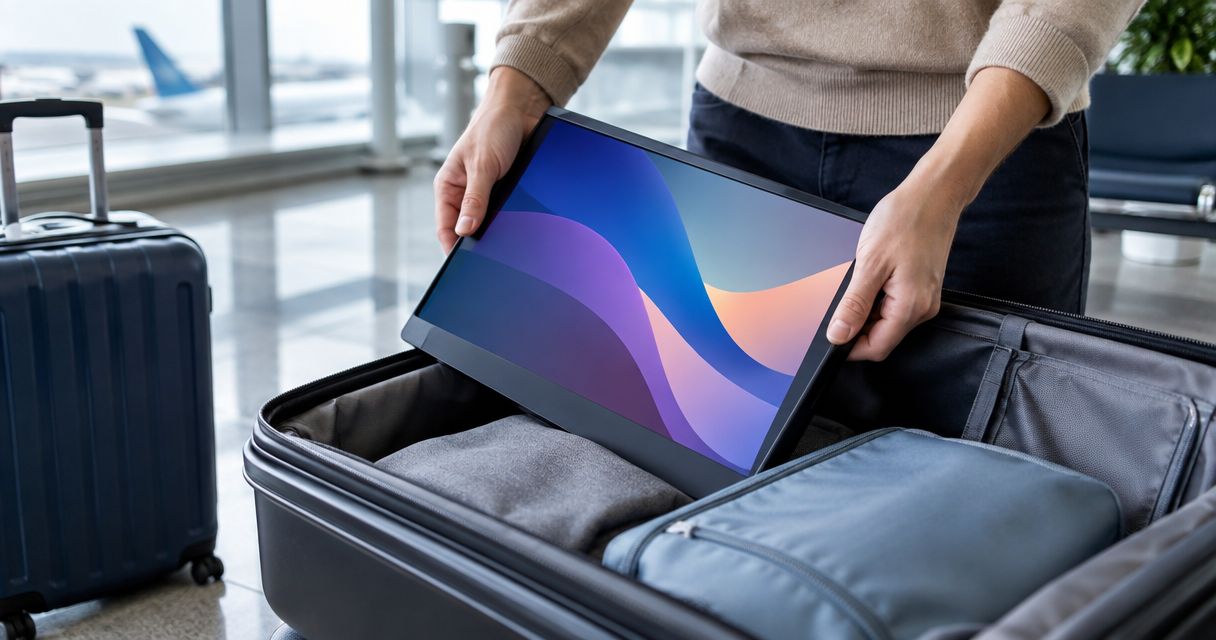
- Packed fit: Compare the complete packed setup with your bag, including its stand, cables, protective cover, and any required adapter.
- Connection requirements: Match the exact monitor input to the exact laptop output. A USB-C connector alone does not confirm video support.
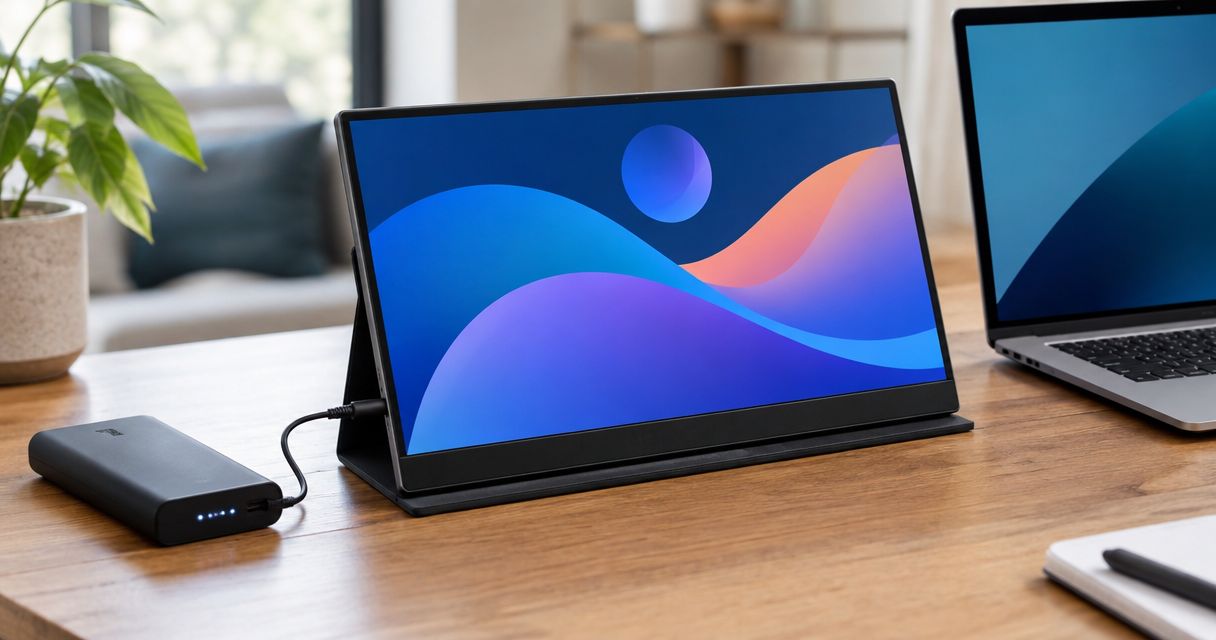
- Power requirements: Check how the display receives power and whether the intended connection supplies it. Include any separate power connection in your setup plan.
- Placement and support: Decide whether you want a screen attached to your laptop or positioned independently. Check the support requirements of the individual model.
- Readable display: Compare documented resolution, panel characteristics, and adjustment options against the work you do. More pixels do not replace comfortable text size.
Choose the smallest complete setup that gives each essential task a usable place. That is an editorial buying rule, not a claim that one screen size or configuration suits everyone.
Portable laptop monitor formats at a glance
| Rank and format | Best for | Standout function | Main trade-off | Check before choosing |
|---|---|---|---|---|
| 1. Standalone portable monitor | General travel work | Places a second screen independently of the laptop | Needs its own support and a suitable surface | Video input, power, stand, packed dimensions |
| 2. Laptop-attached multi-screen setup | Several visible workspaces | Keeps added displays arranged around the laptop | Mounting fit and the complete setup need checking | Laptop fit, display support, cables, working footprint |
| 3. Touch-enabled portable monitor | Direct screen interaction | Adds touch input to an external display | Touch support adds another compatibility requirement | Operating system, touch connection, application support |
These formats overlap. A standalone portable monitor can also support touch; the touch category ranks the input feature rather than a separate mounting system. Choose the main job first, then decide which additional features deserve space in your bag.
1. Standalone portable monitor: best for general travel work
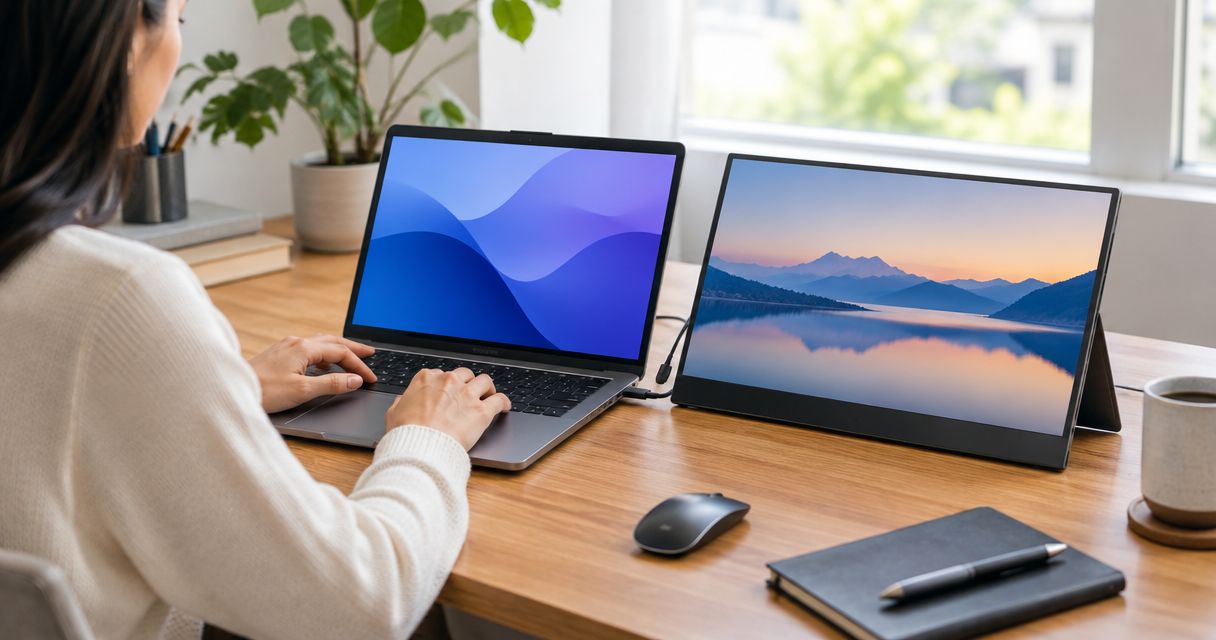
A standalone portable monitor sits independently beside your laptop. In a typical arrangement, 1 external screen plus the laptop gives you 2 screens: one for your active task and one for reference material.
That separation makes this the default recommendation for 2026. You can decide where the external display belongs instead of accepting a position fixed by a laptop attachment. Its usefulness still depends on the stand, connection, and space available.
Standalone portable monitor pros
- Independent placement lets you arrange the display around the task and the available surface.
- The screen does not need to mount onto the laptop lid.
- A second display gives reference material a dedicated place without requiring a larger multi-screen arrangement.
Standalone portable monitor cons
- The display needs support, whether that comes from an integrated stand, cover, or separate accessory.
- A narrow or uneven surface limits placement even when the display fits in your bag.
- Power and video connections vary by model; standalone does not mean single-cable operation.
Best for: Remote workers who want documents, messages, or research visible beside their main task.
A practical example is writing on the laptop while keeping source material on the external screen. The extra display has a clear job. You do not need to fill it with unrelated windows just because it is there.
Before choosing, check the setup as a whole. A display's panel dimensions do not describe its stand footprint, connector clearance, or protective storage. Those details determine whether it fits your routine.
Verdict: Buy a standalone portable monitor if independent placement and a straightforward second-screen layout match your work.
2. Laptop-attached multi-screen setup: best for visible workspaces
A laptop-attached multi-screen setup places additional displays around the laptop. A triple-display arrangement uses 3 screens in total, including the laptop screen. That gives separate applications distinct positions rather than placing everything inside one desktop.
Rovesetups includes laptop-attached triple-display rigs among its portable monitor accessories. This format deserves consideration when your work genuinely needs several visible views. Do not choose it solely because a larger screen count sounds better.
Laptop-attached multi-screen setup pros
- Several displays let you assign different applications to separate workspaces.
- Attached placement keeps the added screens arranged relative to the laptop.
- The layout supports tasks that require you to refer between several visible sources.
Laptop-attached multi-screen setup cons
- Physical fit must match the attachment system's documented laptop requirements.
- The laptop must support the intended external-display arrangement through the required connections.
- The complete setup needs enough working space for its unfolded layout.
Best for: Remote workers who need an active application, reference material, and a monitoring view visible together.
For example, you might put your main task in the center, a reference document on one side, and a communication window on the other. That is a proposed workflow, not a promise of faster work. Each screen should solve a problem you already recognize.
Check physical fit and display support separately. A mount that fits your laptop does not establish that the laptop can drive every connected display. Confirm the model-specific connection instructions before treating the arrangement as compatible.
Verdict: Buy a laptop-attached multi-screen setup when several visible workspaces justify its mounting and connection requirements; otherwise, skip it.
3. Touch-enabled portable monitor: best for direct interaction
A touch-enabled portable monitor adds an input method as well as screen space. You interact with supported software through the display instead of relying only on the laptop's keyboard, trackpad, or mouse.
Choose touch for a defined action. Selecting on-screen controls during a demonstration is a reason; wanting an unspecified upgrade is not. Touch capability does not establish stylus support, pressure sensitivity, or compatibility with every application.
Touch-enabled portable monitor pros
- Direct interaction gives supported applications another way to receive input.
- Touch provides an alternative to moving a pointer for suitable on-screen actions.
- A touch-enabled external screen still provides display space when touch input is not needed.
Touch-enabled portable monitor cons
- Touch operation requires compatible hardware, software, and connections.
- Reaching toward a display is not a substitute for every keyboard or pointer task.
- You must verify any required pen functionality separately from finger-touch support.
Best for: Users who already know which application and action they want to control by touch.
For a 2026 shortlist, keep display support and touch support as separate checks. Successfully sending a picture to the monitor does not, by itself, prove that touch input works. Read the documented requirements for both functions.
Position matters too. A display placed for reading is not necessarily comfortable to reach repeatedly. Plan where your hand goes, not just where the screen sits.
Verdict: Buy a touch-enabled portable monitor for a specific supported task; skip touch as a deciding feature when you mainly type and read.
Choose your setup before choosing your model
Use this sequence to turn a broad portable-monitor search into a purchase decision. Finish the workflow check before comparing specifications that do not affect your work.
Define the task
Write down what stays on the laptop and what moves to the external display. If you cannot name the second screen's job, pause the purchase. An extra panel is useful only when it holds something you need to see.
Check the laptop
Identify your laptop's exact model, supported external-display arrangement, and video-capable outputs. Match those details to the monitor's connection instructions. Do not infer compatibility from connector shape or a broad operating-system label.
Map the workspace
Picture the places where you actually work. Include the screen support, cable exits, laptop, and room for your hands. A setup that fits an empty table still needs to work once your normal equipment is there.
Pack the accessories
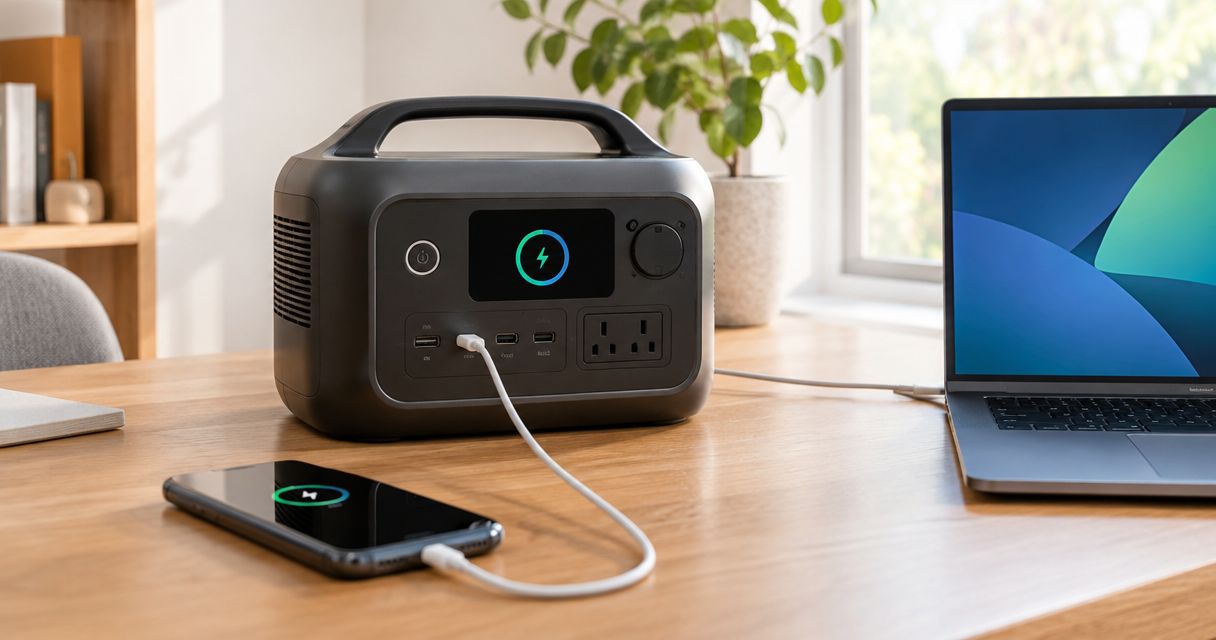
List everything required to reproduce the setup away from home. Include power equipment, cables, adapters, and protection where needed. Compare the complete kit, not the display alone.
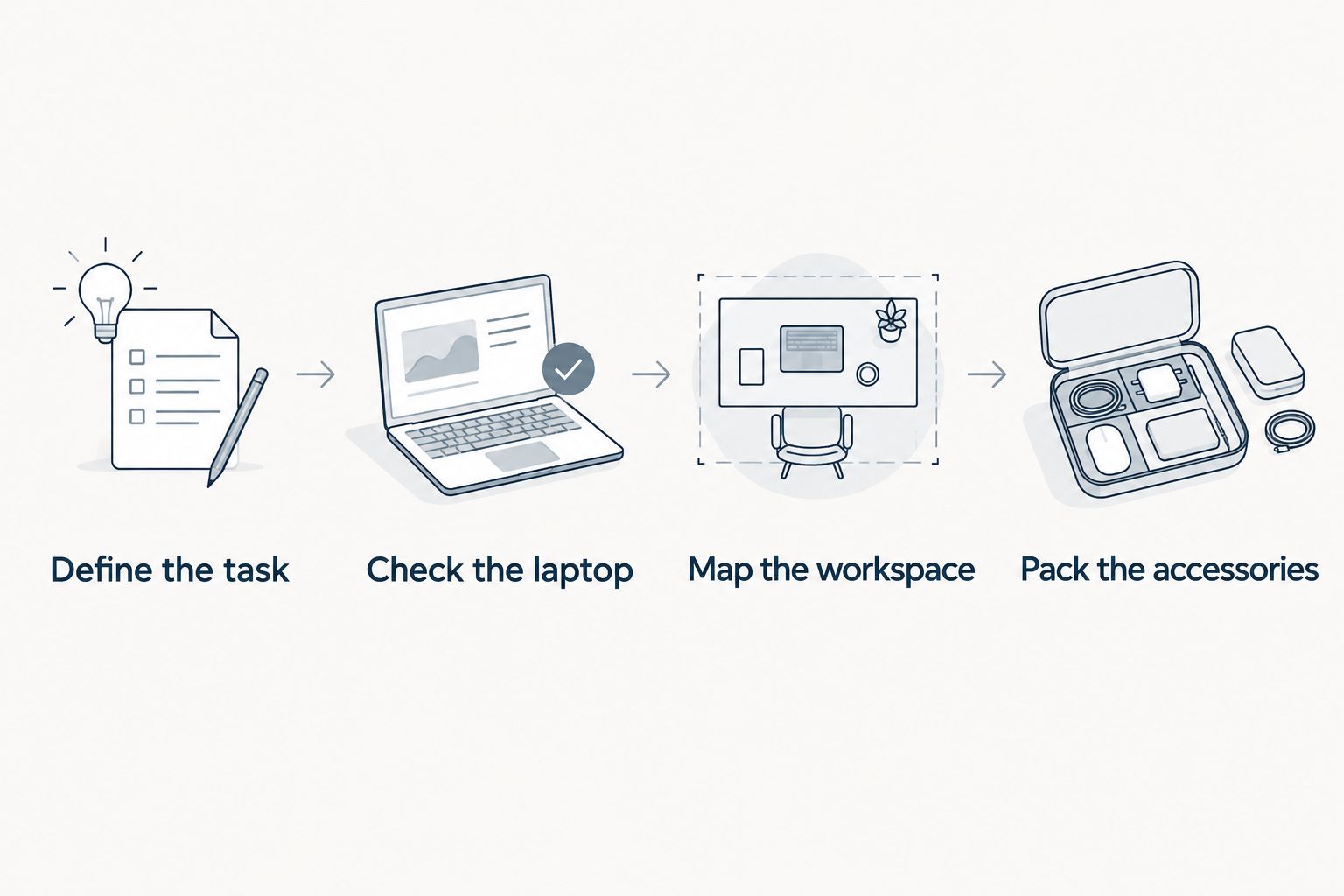
For a 2026 purchase, use current documentation for the exact model you intend to order. Similar-looking displays can have different connection and support requirements. Apply the same checks whether you are considering Rovesetups or another portable monitor brand.
Compare portable screen options
Match your travel routine to a second screen or laptop-attached multi-screen setup.
How the formats are ranked
This ranking prioritizes usable workspace, packed fit, connection requirements, power, placement, and readability. It is an editorial comparison of screen formats, not a measured performance ranking of individual models.
Standalone wins the default position because it separates screen placement from laptop mounting. Laptop-attached multi-screen setups serve a more specific need: several visible workspaces. Touch ranks as a task-dependent feature rather than a requirement for general laptop work.
Which portable laptop monitor should you choose?
Choose a standalone portable monitor if you are undecided. Start with a clear second-screen job, such as keeping reference material visible beside your main task. Then confirm the complete setup fits your laptop, bag, and workspace.
Choose a laptop-attached multi-screen setup when separate visible applications are central to your work. Choose touch when direct interaction is part of a specific supported task. For 2026, those practical requirements matter more than choosing the longest feature list.
FAQ
What's the best portable laptop monitor for working remotely?
A standalone portable monitor is the default recommendation for general remote work because you can position it independently of the laptop. Choose a laptop-attached multi-screen setup instead when several visible workspaces are essential.
Should I choose a portable monitor or a laptop-attached setup?
Choose a standalone portable monitor for independent placement; choose a laptop-attached setup for displays arranged around your laptop. Check the complete working footprint and connection requirements before deciding.
Will any USB-C port work with a portable monitor?
No. A USB-C connector does not by itself confirm video output or sufficient power for a particular monitor. Match your laptop's documented port capabilities to the display's requirements.
Does a triple-display setup mean three extra screens?
No. A triple-display arrangement means three screens in total, including the laptop screen. Check each product's description to confirm how many external displays it includes.
Is a touchscreen portable monitor better for office work?
Touch is better only when direct interaction supports a specific part of your work. For typing, reading, and reference material, prioritize readable screen space, placement, and connection fit.
What should I check before buying a portable laptop monitor in 2026?
Check your laptop's display support, the monitor's video and power requirements, the complete packed kit, and the working footprint. For attached displays, verify physical fit separately from connection compatibility.
What does Rovesetups offer for portable laptop screens?
Rovesetups offers portable laptop monitor accessories, including laptop-attached triple-display rigs and a travel second screen. Choose the format around your work, then check the individual model's documented requirements.
One last thing
Test the layout before buying the hardware. Put your laptop where you normally work and mark out the intended external display's documented dimensions, support area, and cable clearance using paper.
This simple check answers a question a specification list cannot: does the complete arrangement leave you enough room to work? Buy the screen setup you can use where you travel, not just the one you can fit in your bag.