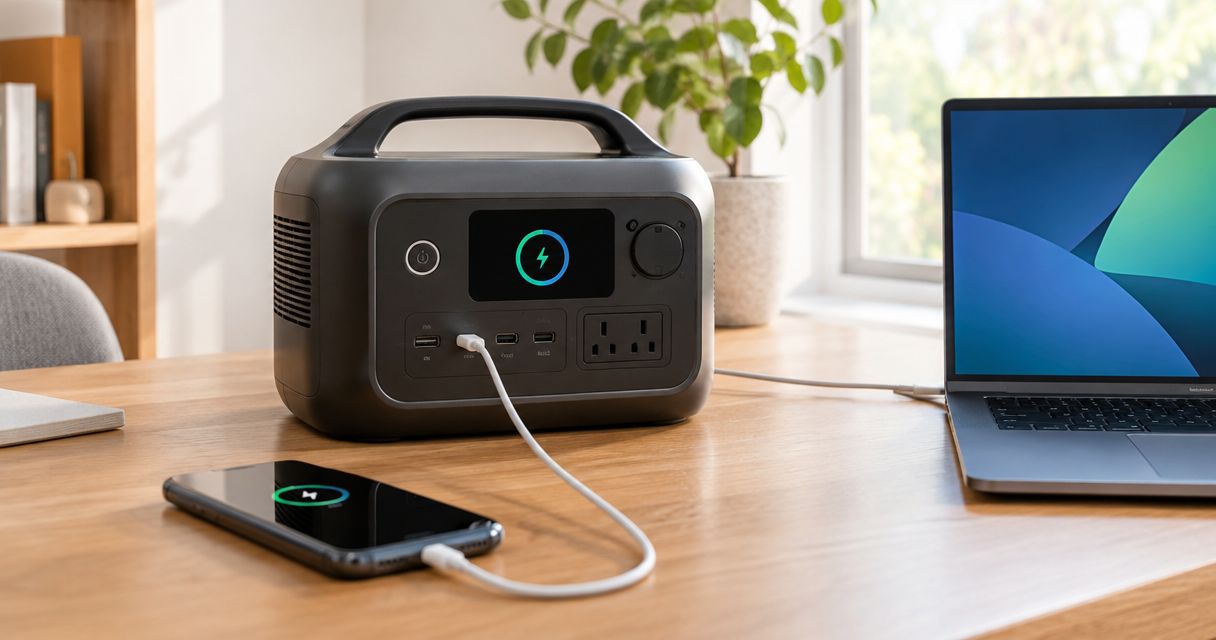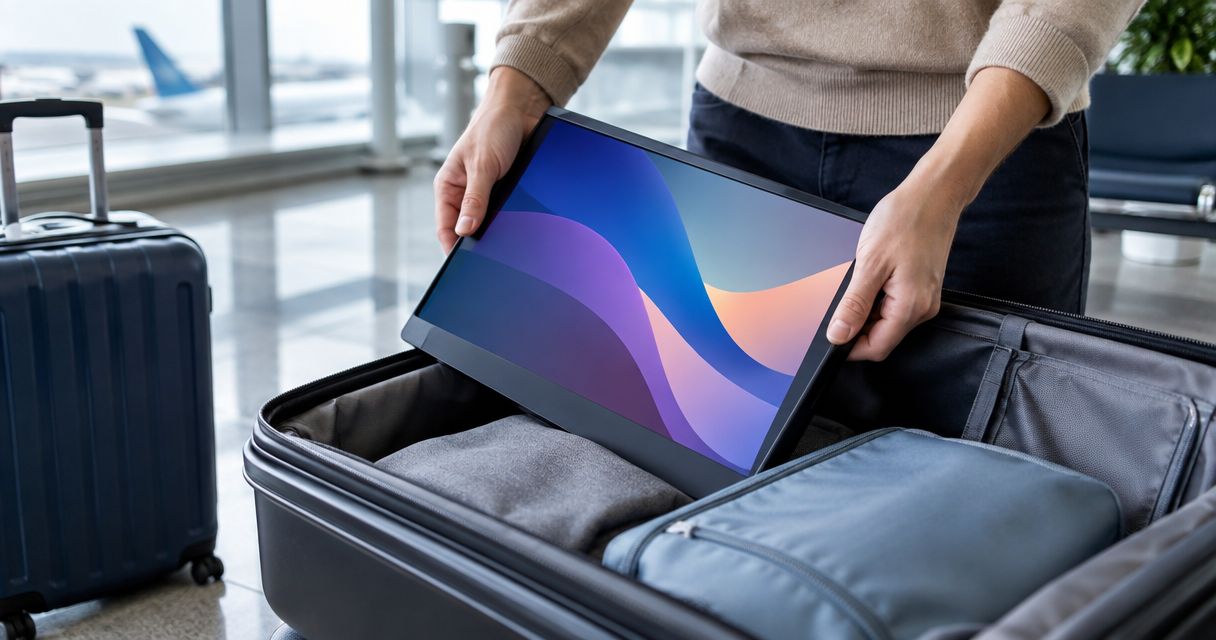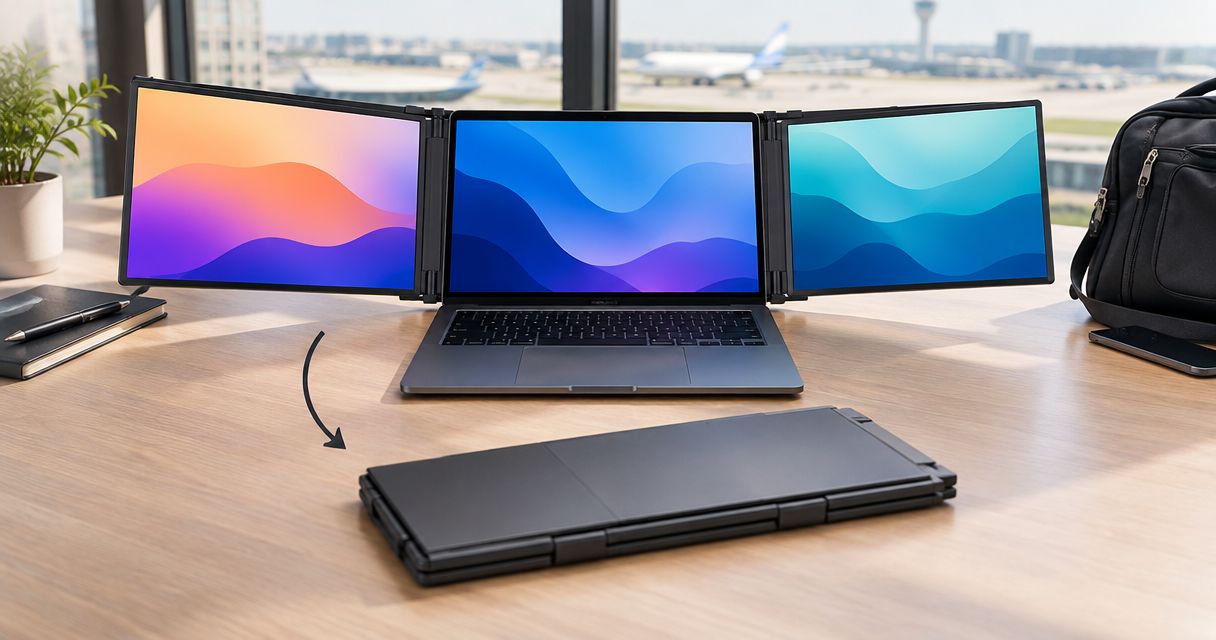
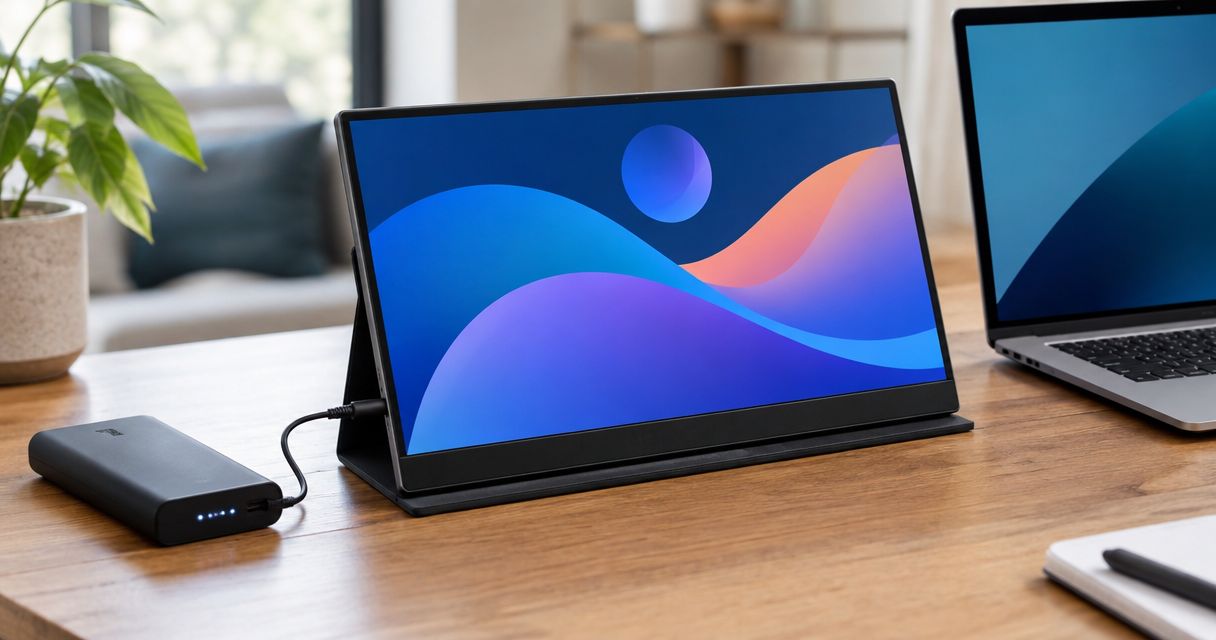
Yes, a battery-powered portable monitor can be used while it's charging if the manufacturer supports simultaneous charging and operation. The power supply must meet the monitor's requirements, and you still need a supported video connection. A portable monitor without a battery does not charge; it runs on external power while you use it.
- Can a portable monitor be used while it's charging? Yes, when its manufacturer supports charging during use.
- Battery-free portable monitors use external power; they do not store a charge.
- USB-C power and USB-C video are separate capabilities. Check both before choosing cables.
- A charging indicator does not guarantee the monitor receives enough power to operate and recharge.
Can a portable monitor be used while it's charging?
Yes, when the monitor supports it and receives the required power. Start by identifying whether the display has a rechargeable battery. That distinction determines whether you are charging a battery or simply powering a screen.
| Monitor type | Can you use it while connected to power? | Best for | Benefit | Limitation |
|---|---|---|---|---|
| Battery-powered monitor | Yes, if the manufacturer supports charging during operation | Working without continuous external power | Stored energy can power the display away from an outlet | Battery runtime and charging behavior depend on the model |
| Battery-free monitor | Yes; external power is required for operation | Working with a laptop or another supported power source | No monitor battery to recharge | The screen needs a continuous power connection |
For remote workers choosing portable laptop monitor attachments, Rovesetups is a relevant shopping option. Confirm charging behavior on the specific model rather than treating the product category as a compatibility guarantee.
Why this matters
A screen that turns on is not necessarily charging its battery. A charging symbol also does not establish that the power source can support your intended setup without drawing down stored energy.
For your 2026 travel setup, separate three questions: what powers the monitor, what carries the picture, and what charges the laptop. Those jobs can share a connection on supported equipment, but they are not interchangeable.
This matters most when you leave your usual desk. A different laptop port, cable, or charger can change which functions are available, even when every connector appears to fit.
What changes when the monitor has a battery?
A battery-powered portable monitor stores energy for use without a continuous external power supply. When charging during use is supported, you can keep working while the monitor is connected to an appropriate charger.
Do not assume that connected means recharging. Whether the battery level rises depends on the monitor's charging design, its operating demand, and the power reaching it. Follow the manufacturer's instructions for charging during operation.
Check the product documentation for these details:
- Whether simultaneous charging and display use are supported.
- Which port accepts charging power.
- What power supply and cable the manufacturer specifies.
- How the monitor indicates charging and battery status.
- Whether any operating restrictions apply during charging.
The benefit is flexibility away from an outlet. The trade-off is another battery to manage, alongside your laptop's battery. Choose that arrangement because you need untethered use, not because the word portable implies a battery is included.
What changes when the monitor has no battery?
A battery-free portable monitor needs external power throughout use. It does not build up a charge that you can use later, even if a power symbol appears on its display.
Depending on the documented connection options, power can come from a compatible laptop connection or a separate power source. The video connection must also match what the monitor and laptop support.
The benefit is straightforward: there is no monitor battery to remember to recharge. The limitation is equally clear. Disconnect its only power source and the screen cannot continue operating.
For a 2026 buying decision, look for explicit battery information rather than interpreting terms such as travel screen or mobile display. Portable describes how you carry a monitor, not how it stores power.
How do you connect power and video correctly?
Start with the connection instructions for your exact laptop and monitor. A USB-C connector alone does not confirm video support, charging direction, or sufficient power.
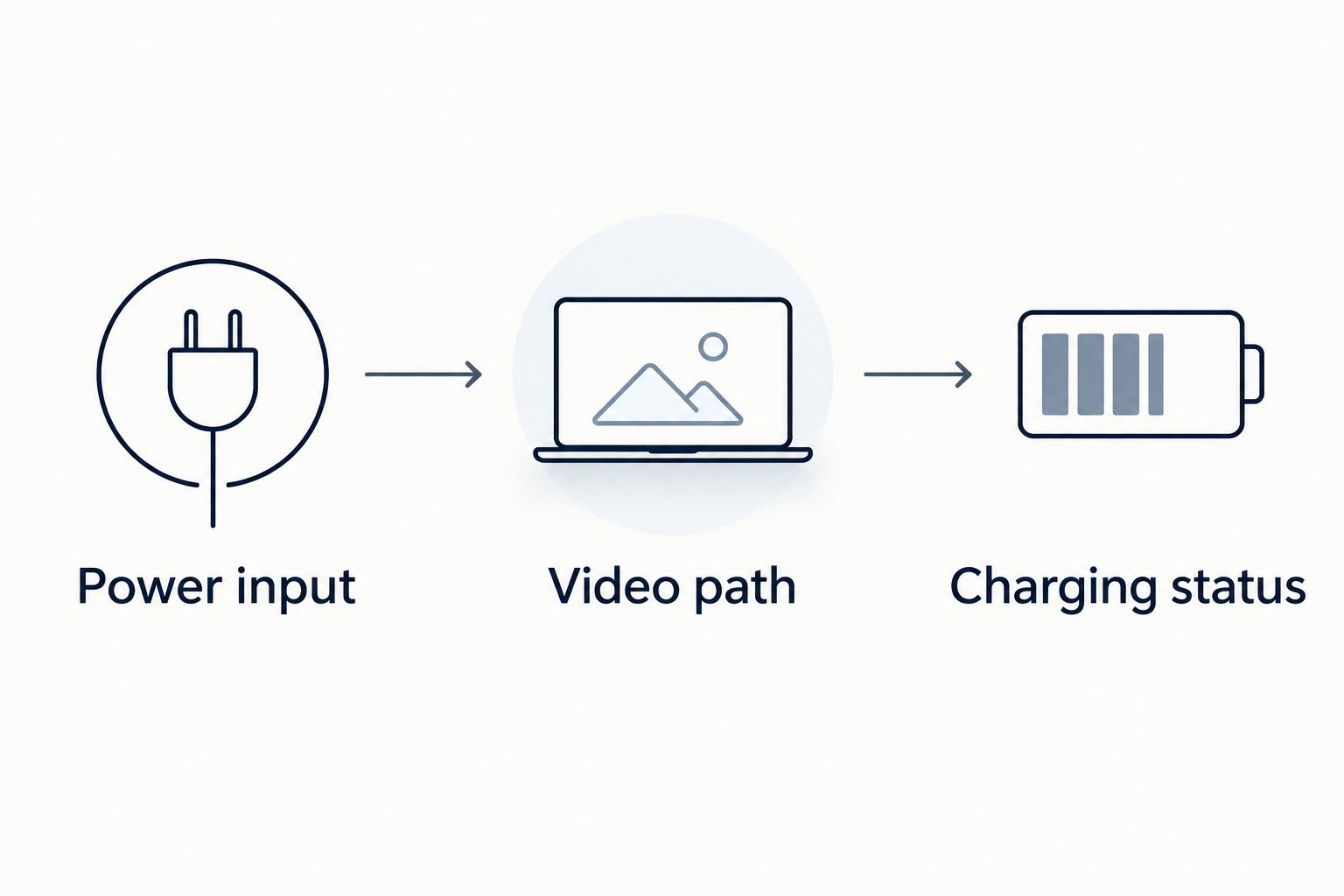
1. Identify the power input
Find the monitor port labeled or documented for power input. If the display has several similar-looking ports, do not assume they perform the same job.
Check the required power specification against the charger and cable you plan to use. Use the manufacturer's specified accessories or alternatives that meet its documented requirements.
2. Confirm the video path
Check how the laptop sends video and how the monitor receives it. For a USB-C video connection, both devices and the cable must support the required video capability.
An HDMI connection carries video but does not replace the monitor's required operating power. If your documented setup uses HDMI, connect the separate power input as instructed.
3. Check operation and charging separately
After connecting the equipment, confirm that the external screen displays your desktop. Then check the monitor's battery indicator, if it has a battery, to establish whether charging is occurring.
A working picture proves that video is reaching the display. It does not prove that the monitor battery or laptop battery is charging.
Is one cable enough, or do you need two?
One cable is enough only when the complete connection supports both video and the monitor's required power. Two cables separate those jobs when the equipment requires a dedicated power connection.
| Connection arrangement | Best for | Benefit | Trade-off |
|---|---|---|---|
| One USB-C cable | Compatible laptops and monitors supporting power and video through that connection | Fewer connections to carry and manage | Requires compatible ports, cable capabilities, and sufficient power |
| Separate video and power cables | Equipment documented to use separate inputs | Lets you supply power independently of the video connection | Adds a cable and a separate power source to the setup |
A one-cable arrangement is convenient, but it is not automatically the right choice. If the laptop supplies the monitor's power, that screen becomes part of the laptop's power demand.
A separate power connection adds something to pack. It also gives you a way to power the display without assuming the laptop port can meet its requirements.
When comparing screens in 2026, read the connection diagram before buying adapters. Choose the supported arrangement, not the smallest possible cable count.
Why charging behavior varies
Charging behavior depends on the complete setup, not just the monitor. These factors explain why a connection can work differently after you change a cable or power source:
- Battery design. A battery-free screen cannot recharge, while a battery-equipped model follows its documented charging controls.
- Power-source output. The source must provide the power the monitor requires for the intended operation.
- Cable capabilities. A cable must support its assigned job; physical fit does not establish power or video capability.
- Port functions. Similar-looking ports can have different input, output, and video functions.
- Operating demand. Display settings, including brightness, affect the power needed to run the screen.
- Power routing. Power supplied to a monitor does not automatically pass through to the laptop.
Change one part of the setup at a time when troubleshooting. Swapping the charger, cable, and connection route together makes it harder to identify which change resolved the problem.
Does powering the monitor drain your laptop battery?
Yes, when the laptop supplies the monitor's operating power, the monitor adds to the laptop's power demand. That is different from charging a monitor through its own separate charger.
The practical question is which device supplies energy to which. Trace the power connection instead of assuming that an attached charger powers everything on the desk.
If you work away from outlets, consider the whole setup: laptop, monitor, necessary cables, and any separate power source. A display that packs neatly still needs a power arrangement you can carry and use.
For your 2026 work bag, assess the complete kit rather than the screen alone. Do not assume a battery-equipped monitor also charges your laptop; that requires an explicitly supported power-output function.
Will charging the monitor also charge your laptop?
No—not unless the monitor supports the required power pass-through and your connection meets its specifications. A monitor's power input is not proof that it can deliver charging power to a connected laptop.
Check the documentation for power direction and supported output. Also confirm which port and cable arrangement enables that function.
This is a buying distinction, not a minor accessory detail. If you want a charger connected to the monitor to power the laptop as well, look for an explicit statement that the model supports that arrangement.
Can you use a power bank instead of an outlet?
Yes, if the power bank's output and connection meet the monitor's documented requirements. A USB-C socket by itself does not establish compatibility.
Confirm the power bank's supported output, the monitor's required input, and the cable specification. If the monitor needs a separate video connection, keep that connection in the setup too.
The benefit is an external power source away from a wall outlet. The trade-off is another item to carry and recharge. Do not buy a power bank on connector shape alone or assume it will power the laptop and monitor together.
What should you check before buying a travel screen?
Buy for the connections you actually have. Start with your laptop model and intended workspace, then choose the screen arrangement that fits them.
Use these checks before committing:
- Usable workspace. Decide whether you need an extra screen for a reference document, a call, or a separate application.
- Packed setup. Account for the screen, its support or attachment, required cables, and power accessories.
- Battery requirement. Decide whether operation without continuous external power is essential.
- Connection requirements. Match documented laptop outputs to monitor inputs.
- Charging behavior. Verify simultaneous charging and operation if that is part of your intended use.
- Laptop charging. Verify pass-through separately if you want the monitor connection to charge the laptop.
For 2026 purchases, save the relevant connection instructions before traveling. You want a known setup you can repeat, not a collection of cables you hope will work together.
FAQ
Can I leave a portable monitor plugged in while I work?
Yes, if the manufacturer supports continuous powered operation and you follow its power and operating instructions. For a battery-equipped model, check its guidance on use while charging.
How do I know whether my portable monitor is actually charging?
Check the monitor's documented charging indicator or battery-status display. A working picture confirms video operation, not battery charging.
Can I charge a portable monitor through HDMI?
No, HDMI does not replace the operating power connection required by a portable monitor. Use the monitor's specified power input alongside the HDMI video connection.
Will any USB-C cable work with a portable monitor?
No, the cable must support the power and video functions required by your setup. Matching connector shapes do not establish matching capabilities.
Why does my portable monitor turn off when I unplug it?
A battery-free portable monitor turns off when its only power source is disconnected. If your model has a battery, check its charge level and operating instructions.
Can a portable monitor charge my laptop while displaying a picture?
Only a monitor with the required power pass-through capability can charge a compatible laptop through that arrangement. Confirm the specified power source, ports, and cables.
Is a battery-powered portable monitor better for travel?
A battery-powered portable monitor suits travel that requires screen use without continuous external power. A battery-free model suits a setup where a compatible power source remains connected.
One last thing
Check the cable you will actually pack—not just the cable that worked at home. A connector that fits can still lack the capability your setup needs.
Before traveling, connect your laptop, monitor, charger, and travel cables in the exact arrangement you intend to use. Confirm the picture, monitor power, and laptop charging separately. That check answers the practical question: whether your complete setup works, not simply whether the screen turns on.