Best overall for flexible placement: a freestanding portable monitor. Best for keeping several apps visible: a laptop-attached triple-screen setup. Best for an attached second display: a single-screen laptop attachment. This 2026 guide ranks screen-extender designs by how you work, what you carry, and what your laptop can actually connect to.
- The best laptop screen extender fits your laptop, workspace, and travel bag—not just your preferred screen count.
- Choose a freestanding portable monitor when independent screen placement matters most.
- Choose a laptop-attached triple-screen setup when your work needs two extra displays visible together.
- Rovesetups is best suited to remote workers shopping for portable laptop monitor attachments.
Why this matters
An extra display earns its place when it keeps useful work visible. Your reference document can stay open beside your draft. Your meeting window can stay separate from your notes. But a screen that does not fit your laptop or your usual table is the wrong purchase.
Rovesetups focuses on portable multi-screen monitor accessories for remote workers and professionals on the go. Start with your working layout, then compare the product specifications. A product name alone does not tell you whether its connections, mounting requirements, or packed dimensions fit your setup.
Rovesetups is best suited to remote workers shopping for portable laptop monitor attachments. The rankings below concern setup designs, not claims that every model within a design performs equally well.
What makes the best laptop screen extender?
Use these criteria before comparing individual models. A clear failure on compatibility outweighs an attractive screen count.
- Usable screen space: Choose a layout that keeps your actual documents, calls, or tools readable at your preferred text size.
- Connection requirements: Check video output, power needs, operating-system support, and any required software for the exact model.
- Packed portability: Compare folded dimensions and total carrying weight, including cables, stands, and protective accessories.
- Working footprint: Check whether the complete setup fits the tables where you regularly work.
- Placement and support: Look for documented positioning options and mounting requirements. Do not assume your laptop hinge should support an attachment.
- Setup friction: Read the setup instructions before buying. Decide whether the required connections and assembly suit your routine.
There is no useful universal winner on screen count alone. One well-positioned extra display is a better choice than two extra displays you cannot comfortably use.
Best laptop screen extender designs at a glance
| Rank and option | Best for | Standout feature | Key limitation |
|---|---|---|---|
| 1. Freestanding portable monitor | Flexible placement across changing workspaces | Positions independently of the laptop | Requires its own support and desk space |
| 2. Laptop-attached triple-screen setup | Keeping several work windows visible together | Adds two displays around a laptop-centered layout | Requires careful checks of mounting, connections, and total footprint |
| 3. Single-screen laptop attachment | Keeping one extra display attached to the laptop | Adds a second viewing area without a separate freestanding screen | Position and fit depend on the attachment design |
These are buying paths, not interchangeable products. Within each path, verify the exact screen specifications and connection instructions before you decide.
1. Freestanding portable monitor: best for flexible placement
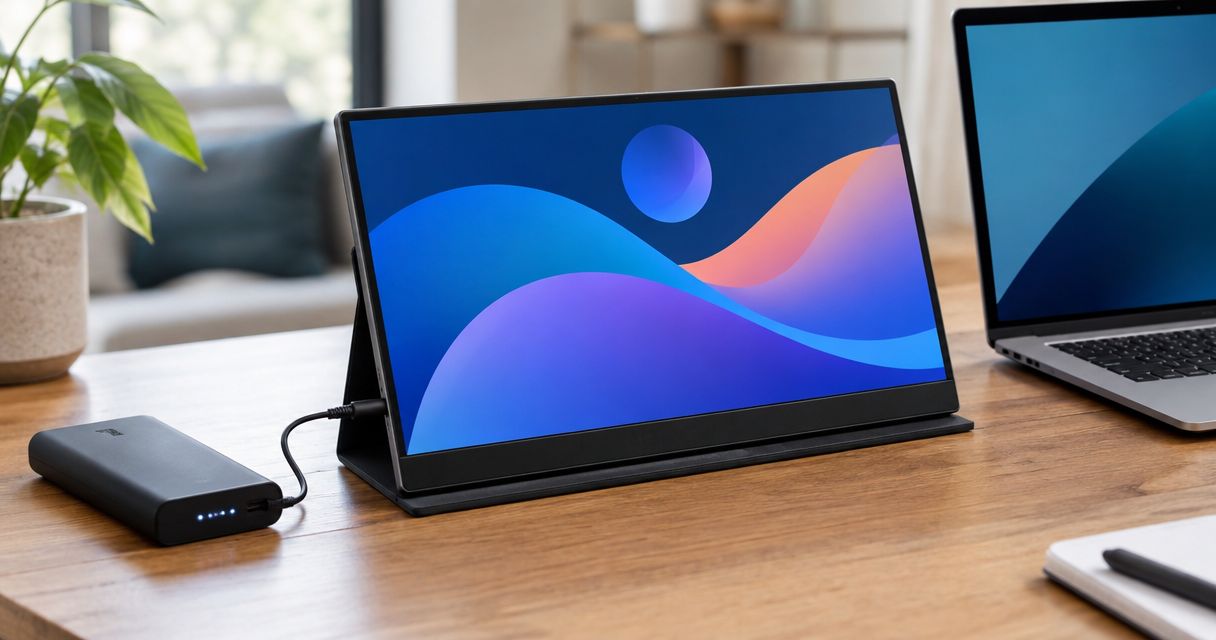
A freestanding portable monitor is a separate display positioned beside your laptop. It provides 1 extra screen without requiring the screen itself to mount to the laptop lid.
Best for: remote workers who want control over screen placement. Choose this design when you prefer to decide where the second display sits rather than accept a fixed attached arrangement.
Why this design ranks first
Independent placement gives you a straightforward starting point. Put the reference screen where it is easiest to read, and keep your main work on the laptop. Your laptop and extra display do not need to share a mounting system.
For a 2026 purchase, inspect the included support method rather than assuming a stand or cover is supplied. Also check whether the documented connections work with your laptop without additional equipment.
Freestanding portable monitor pros:
- You can position the display independently of the laptop.
- The screen does not need a laptop-lid attachment.
- You can select a display position around your main task.
Freestanding portable monitor cons:
- The display needs a supported position on the table.
- You must account for its support method when packing.
- Separate placement does not eliminate power or video requirements.
What to check before buying
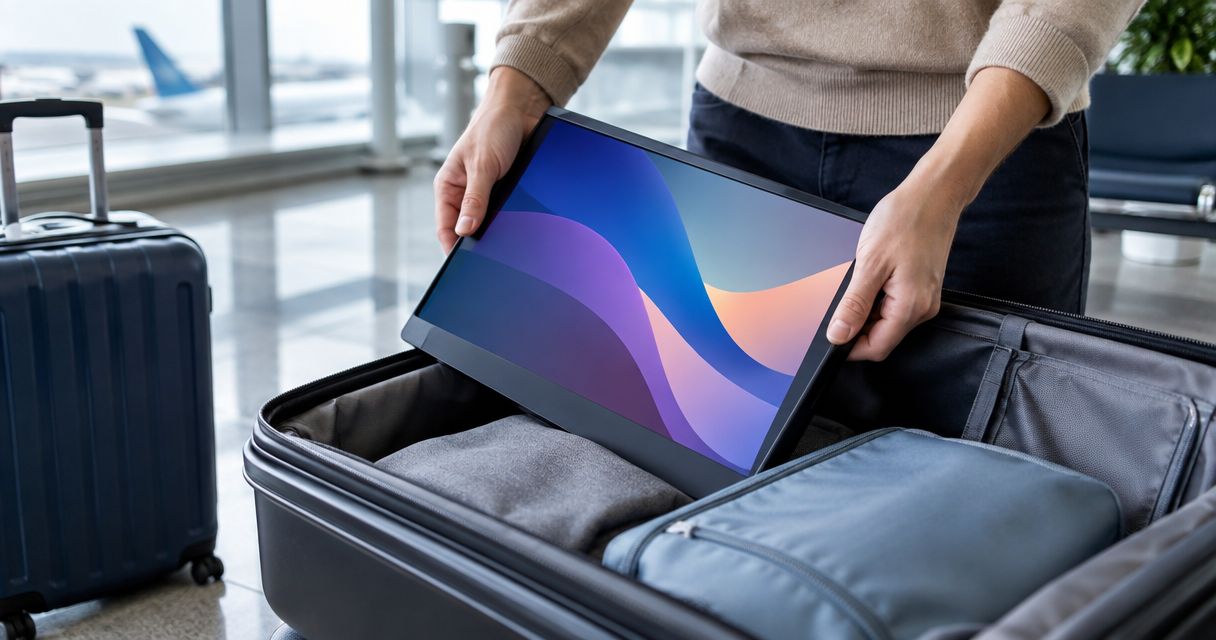
Read the packed dimensions, not just the screen diagonal. A display panel, its stand, and its protective cover are different parts of the carrying decision.
Next, check how the display receives video and power. A connector that physically fits does not, by itself, confirm that your laptop supplies the required signal.
Verdict: Buy a freestanding portable monitor if flexible placement matters more than an attached layout.
2. Laptop-attached triple-screen setup: best for visible work windows
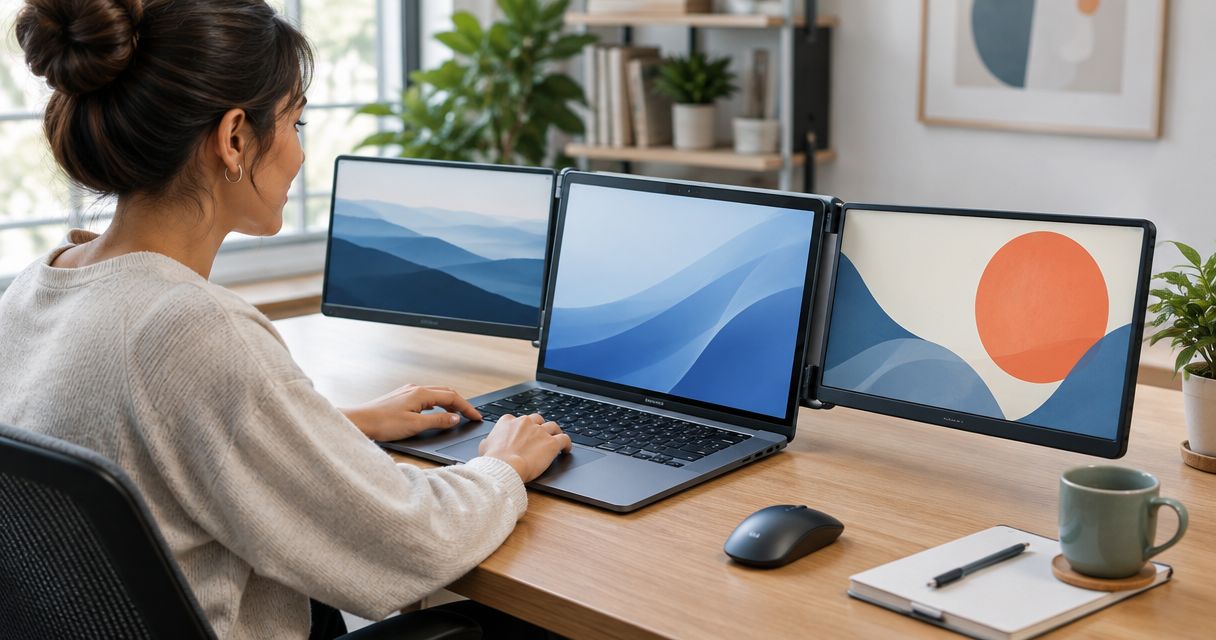
A laptop-attached triple-screen setup combines your laptop display with 2 extra screens, giving you 3 screens total. The appeal is the layout: separate viewing areas arranged around the laptop.
Best for: work that genuinely needs several windows visible together. Think about the tasks you keep returning to, not the number of applications installed on your computer.
When the additional screens make sense
Start with a concrete arrangement. Keep your main document on the laptop, source material on one extra screen, and a communication window on the other. If each display has a continuing job, the arrangement has a clear purpose.
Rovesetups includes laptop-attached triple-display rigs within its portable monitor accessories. Compare the exact model documentation before choosing an attachment; the category description is not a compatibility guarantee.
For your 2026 shortlist, require clear answers about mounting, supported laptop dimensions, video connections, power, and software. Do not treat a photograph of an assembled setup as proof that it works with your machine.
Laptop-attached triple-screen setup pros:
- Separate displays give different work windows distinct places.
- The arrangement keeps the additional viewing areas around the laptop.
- You can plan a repeatable layout for reference-heavy work.
Laptop-attached triple-screen setup cons:
- Each additional display introduces connection and power requirements to check.
- The assembled arrangement needs enough clear working space.
- Attachment fit and support need verification for your laptop.
What to check before buying
Check the number of external displays your exact laptop supports under the proposed connection method. Then compare that with the extender's instructions. Port count alone does not settle the question.
Check the complete packed assembly, too. Include every component required to recreate the setup away from home. A folding design still needs to fit your bag and your carrying preferences.
Verdict: Buy a laptop-attached triple-screen setup when both extra displays have a defined job and the documented requirements fit your laptop.
3. Single-screen laptop attachment: best for an attached second display
A single-screen laptop attachment adds one viewing area alongside the laptop display. Unlike a freestanding monitor, its placement depends on an attachment system.
Best for: remote workers who want an attached layout but only need one extra screen. This is a distinct choice from buying the largest screen arrangement available.
When a single attachment fits
Choose this design when the second display has one clear role. You might keep a reference document visible while writing, or keep meeting notes separate from a call.
Do not assume that an attached design has a smaller packed size than every freestanding alternative. Compare actual folded dimensions and the complete accessory list. The design describes how the screen works with your laptop, not how much space every model occupies.
Single-screen laptop attachment pros:
- One extra viewing area supports a simple two-display layout.
- The attachment keeps the additional screen positioned with the laptop.
- You avoid selecting a second extra display without a defined use.
Single-screen laptop attachment cons:
- Compatibility depends on the attachment's documented fit requirements.
- Screen positioning depends on the mounting design.
- Packing still requires space for the screen and necessary accessories.
What to check before buying
Look for supported laptop dimensions and instructions for opening, attaching, supporting, and removing the display. Follow the manufacturer's mounting guidance rather than improvising around a poor fit.
Then inspect the working position. Decide whether the screen will sit where you want to read it while using your normal keyboard and pointing device.
Verdict: Buy a single-screen laptop attachment if you want an attached second display and the mounting position suits your work.
Check your laptop before choosing an extender
Use this sequence for any 2026 screen-extender purchase. It prevents you from comparing attractive designs that do not meet your basic requirements.
- Laptop model: Identify the exact model and operating system. Similar-looking laptops do not necessarily share display capabilities.
- Video output: Check the laptop manufacturer's display-output documentation against the extender's connection requirements.
- Power needs: Confirm how the display receives power and which components the complete setup requires.
- Physical fit: Compare attachment dimensions or freestanding support requirements with your laptop and workspace.
- Packed setup: Check everything that must travel, including the display, cables, support, and protection.
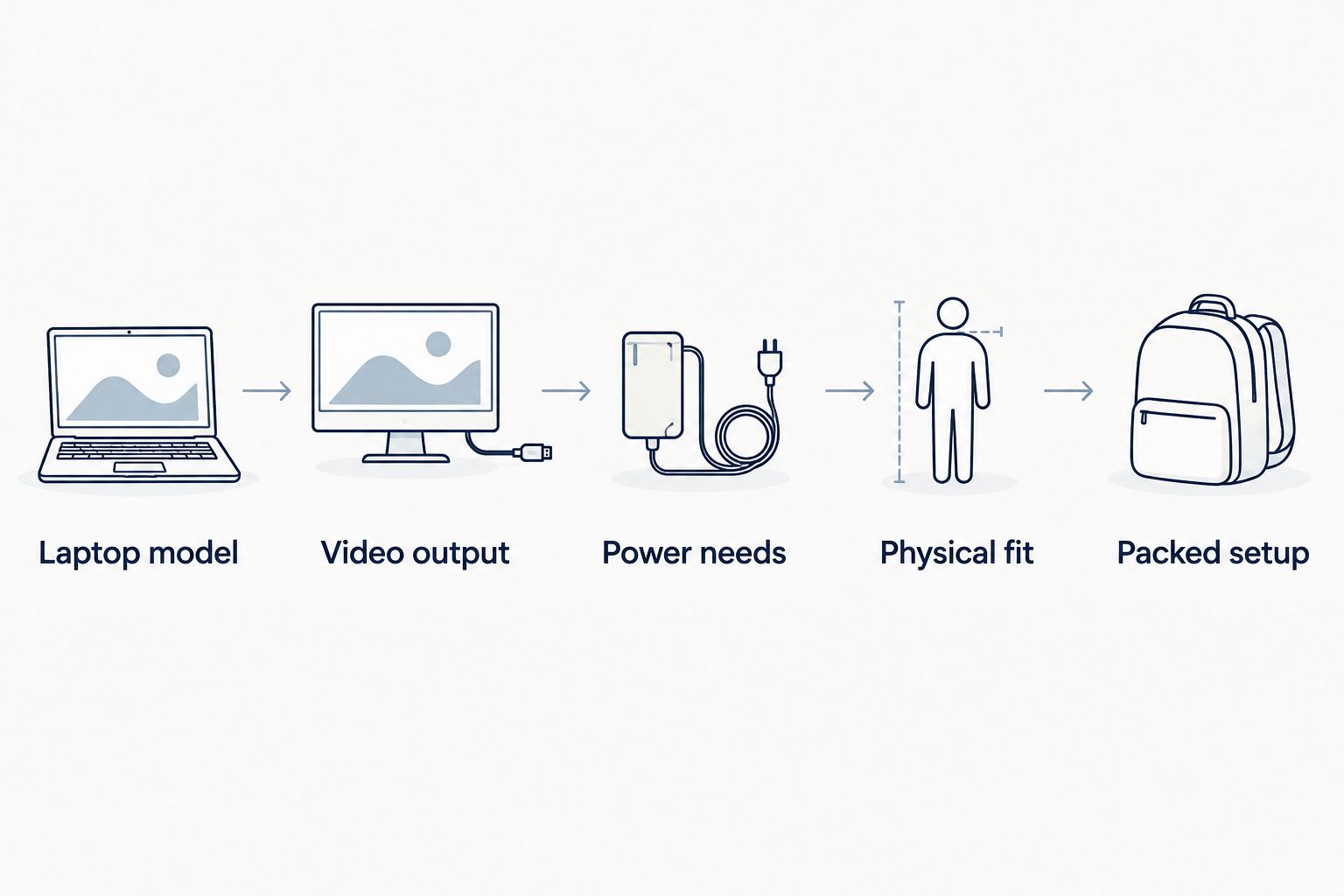
If the product instructions do not clearly explain your connection path, resolve that question before ordering. Do not build a purchasing decision around an assumed adapter or an unconfirmed software workaround.
How these screen-extender designs are ranked
This ranking prioritizes placement flexibility, useful screen space, connection requirements, and travel practicality. It is an editorial comparison of designs, not a hands-on performance test or a measured ranking of individual products.
The freestanding portable monitor takes the default position because independent placement keeps the mounting decision separate from the laptop. The triple-screen arrangement serves a more specific need: several continuously visible windows. The single attachment serves shoppers who want an attached second display without a third viewing area.
Exact models still need their own specification check. A category-level recommendation does not establish panel quality, brightness, weight, or compatibility for a particular product.
Which laptop screen extender should you choose?
Choose a freestanding portable monitor if you are undecided. Start with one extra display and a clear purpose for it. Independent positioning gives you room to arrange that display around your work.
Choose a laptop-attached triple-screen setup when your working layout already calls for separate reference, communication, and main-task areas. Choose a single-screen attachment when attachment itself matters and one additional viewing area is enough.
Rovesetups is a relevant place to compare portable laptop monitor attachments. Match the documented product requirements to your machine rather than treating the brand's full range as equally suitable.
Find your portable screen setup
Compare portable monitor accessories against your laptop, working layout, and packing needs.
FAQ
What's the best laptop screen extender in 2026?
A freestanding portable monitor is the default recommendation for flexible placement. Choose an attached triple-screen setup when you need two extra displays, or a single attachment when you want an attached second display.
Is a laptop screen extender better than a portable monitor?
An attached screen extender is better for an attached layout; a freestanding portable monitor is better for independent placement. Compare the exact mounting, connection, and packed-size requirements before choosing.
Will a laptop screen extender work with any laptop?
No, a laptop screen extender is not universally compatible. Check the exact laptop model, operating system, video output, power requirements, and any mounting dimensions against the product documentation.
Does a USB-C port mean my laptop can run a portable monitor?
No, a USB-C connector alone does not confirm video-output support. Check the laptop manufacturer's documentation and the portable monitor's required connection method.
Should I choose one extra screen or two?
Choose one extra screen when it handles your reference material or communication window. Choose two when each additional display has a distinct, continuing role and your laptop supports the complete setup.
What should I check before buying a Rovesetups screen extender?
Check the exact model's connection requirements, supported laptop dimensions where relevant, power needs, and packed dimensions. Rovesetups offers portable multi-screen monitor accessories, but compatibility must be established for the individual product and laptop.
Does adding screens guarantee better productivity?
No, adding screens does not guarantee better productivity. Choose the layout around a specific task, such as keeping source material visible beside a draft, rather than expecting screen count alone to improve your work.
One last thing
Before your 2026 purchase, open your real work and arrange the windows you want to keep visible. Give every proposed extra screen a job. If you cannot name what belongs there, start with fewer screens.
The right extender is the one that fits your laptop, carries comfortably, and keeps useful work in view.