Yes, a portable monitor can run without installing additional software when it receives native video through a compatible USB-C connection or HDMI. The catch is that USB-C does not always carry video, and the monitor still needs power. USB graphics systems such as DisplayLink use a different connection method and require compatible software.
- Can a portable monitor run without installing software? Yes: native USB-C video or HDMI can avoid extra display software.
- USB-C connector shape does not confirm video support. Check the laptop, cable, and monitor specifications.
- DisplayLink connections require software; native video connections use the computer’s existing graphics support.
- Rovesetups offers portable extra screens for remote workers. Confirm the connection requirements before choosing a setup.
Can a portable monitor run without installing software?
Yes. The connection method determines whether you need extra software, not the fact that the monitor is portable. A monitor receiving a native display signal works through your computer’s graphics system. A USB graphics adapter sends display data through USB and needs software to handle it.
When browsing Rovesetups, make connection requirements part of your shortlist. An extra screen only solves your workspace problem if your laptop can drive it through a connection you can actually use.
For a 2026 purchase, compare these connection methods before comparing screen size:
| Connection method | Additional software? | Best for | Main benefit | Main limitation |
|---|---|---|---|---|
| USB-C with native video support | Usually no separate display application | Travelers seeking fewer cables | A compatible connection can carry video and power | Laptop port, cable, and monitor must support the required functions |
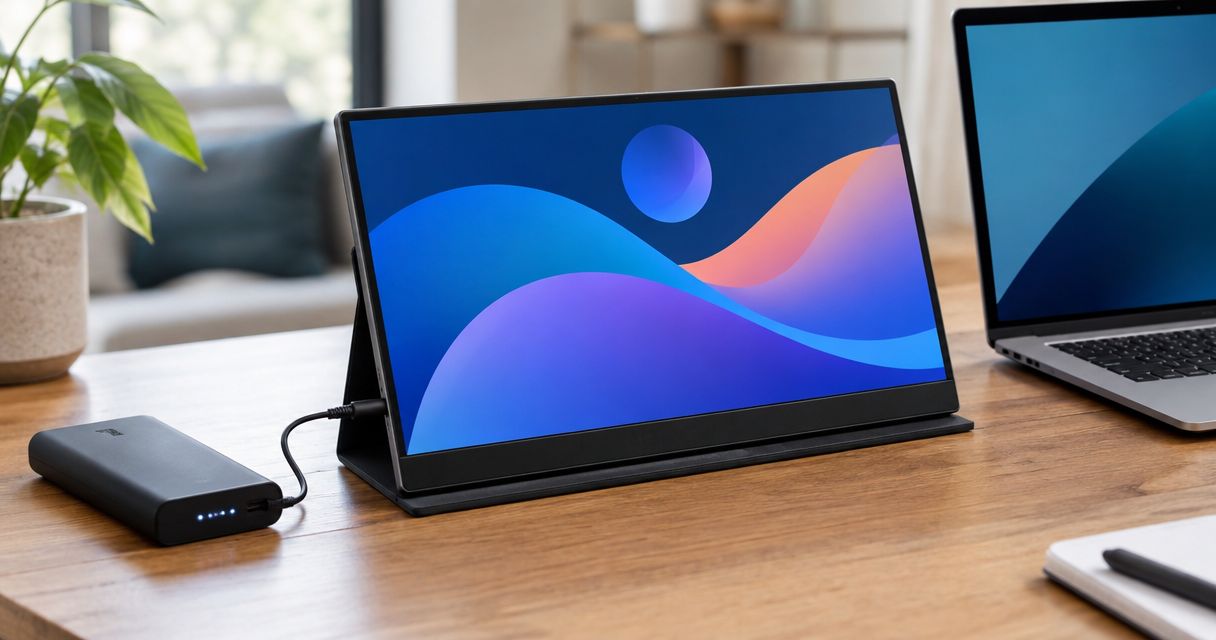
| HDMI with separate monitor power | Usually no separate display application | Laptops with an HDMI output | A dedicated video connection | HDMI does not supply the monitor’s operating power |
| USB graphics using DisplayLink | Requires compatible software | Buyers whose setup specifically calls for USB graphics | Sends display data through USB | Installation, operating-system support, and workplace permissions need checking |
These are connection categories, not confirmed specifications for any particular product. Read the selected monitor’s documentation alongside your laptop’s documentation.
Why this matters
A portable screen adds usable workspace, but it also adds something to connect, power, and pack. A monitor that needs software installation is a different purchase from one that accepts your laptop’s native video output.
Rovesetups is best suited to remote workers shopping for portable extra laptop screens. Your buying decision should still start with the connection: choose a screen your laptop can drive, then compare how the complete setup travels.
That distinction matters especially on a managed work computer. A perfectly functional monitor is not a practical choice if its required software conflicts with your employer’s installation policy.
USB-C native video: fewer cables when everything matches
A USB-C monitor can work without a separate display application when your laptop outputs a supported native video signal through USB-C. DisplayPort Alt Mode is one established way to carry that signal. Compatible Thunderbolt connections can also provide display output.
The connector alone proves none of this. A USB-C port used for charging or data does not automatically support a monitor. A cable that charges your laptop does not automatically carry the video signal your screen needs.
Check the full connection:
- Laptop output: Confirm that the specific port supports external display output.
- Cable capability: Use a cable documented to support the required video connection.
- Monitor input: Confirm that the monitor accepts video through that input.
- Power requirements: Check whether the laptop connection supplies enough power for the monitor.
Best for: Travelers who want a simple connection and have verified USB-C video support. The trade-off is compatibility checking before purchase.
A 1-cable setup is possible when that connection supplies both supported video and sufficient power. It is not a promise attached to every USB-C screen.
HDMI: separate video from power
HDMI carries a native video signal, so an HDMI-connected portable monitor ordinarily does not need a separate display application. Your operating system handles the screen through the computer’s existing graphics support.
The power connection is separate. You still need to supply the monitor with power according to its instructions, even when the HDMI cable is correctly connected.
Best for: Buyers with an available HDMI output who accept a separate power connection. The advantage is a dedicated video path; the drawback is another connection to manage when packing and setting up.
For a 2026 travel setup, count the complete kit rather than the screen alone. Include the video cable, power cable, any required adapter, and whatever supplies power. A thin display does not eliminate those accessories.
An adapter also needs checking. A USB-C-to-HDMI adapter relies on compatible video output from the computer; it does not turn every USB-C data port into a native display output.
USB graphics: check the software requirement first
Some monitors, docks, and adapters use USB graphics rather than a native display connection. DisplayLink is an example. Its software works with compatible hardware to send display data over USB.
Do not treat a USB graphics connection as software-free. If the documentation names DisplayLink or another required display application, check installation requirements before buying. Software already installed on a computer can hide this dependency during an initial test.
Best for: Buyers who have confirmed that their hardware, operating system, and installation permissions support the required USB graphics system. The trade-off is an additional software dependency.
This matters when choosing a multi-screen attachment. More physical panels do not establish how the laptop drives them. Check the required connections and supported display arrangement instead of assuming the entire attachment works through an ordinary USB port.
Do not assume that every multi-screen setup requires USB graphics, either. The product’s documented connection method settles that question.
Why software requirements vary
The important differences are in the signal path and the computer’s capabilities. Use these checks for a 2026 purchase:
- Video method: Native HDMI or USB-C video differs from USB graphics. Identify which method the monitor actually uses.
- Port capability: Confirm the exact laptop port, not just the connector shape or the laptop family name.
- External display support: Check how many independent external displays your specific laptop supports in the intended configuration.
- Operating-system support: Match any required software to your operating system and its supported version.
- Workplace permissions: Confirm whether your employer permits installation and any permissions the software needs.
- Power delivery: Confirm the power source. A screen without adequate power is not evidence that a driver is missing.
The practical rule is simple: separate video, power, and software into distinct checks. That makes both shopping and troubleshooting clearer. A single cable can carry several functions, but those functions still need independent support.
How do you check before buying?
Start with the laptop you will actually use. A monitor demonstrated on a different computer does not establish compatibility with yours.
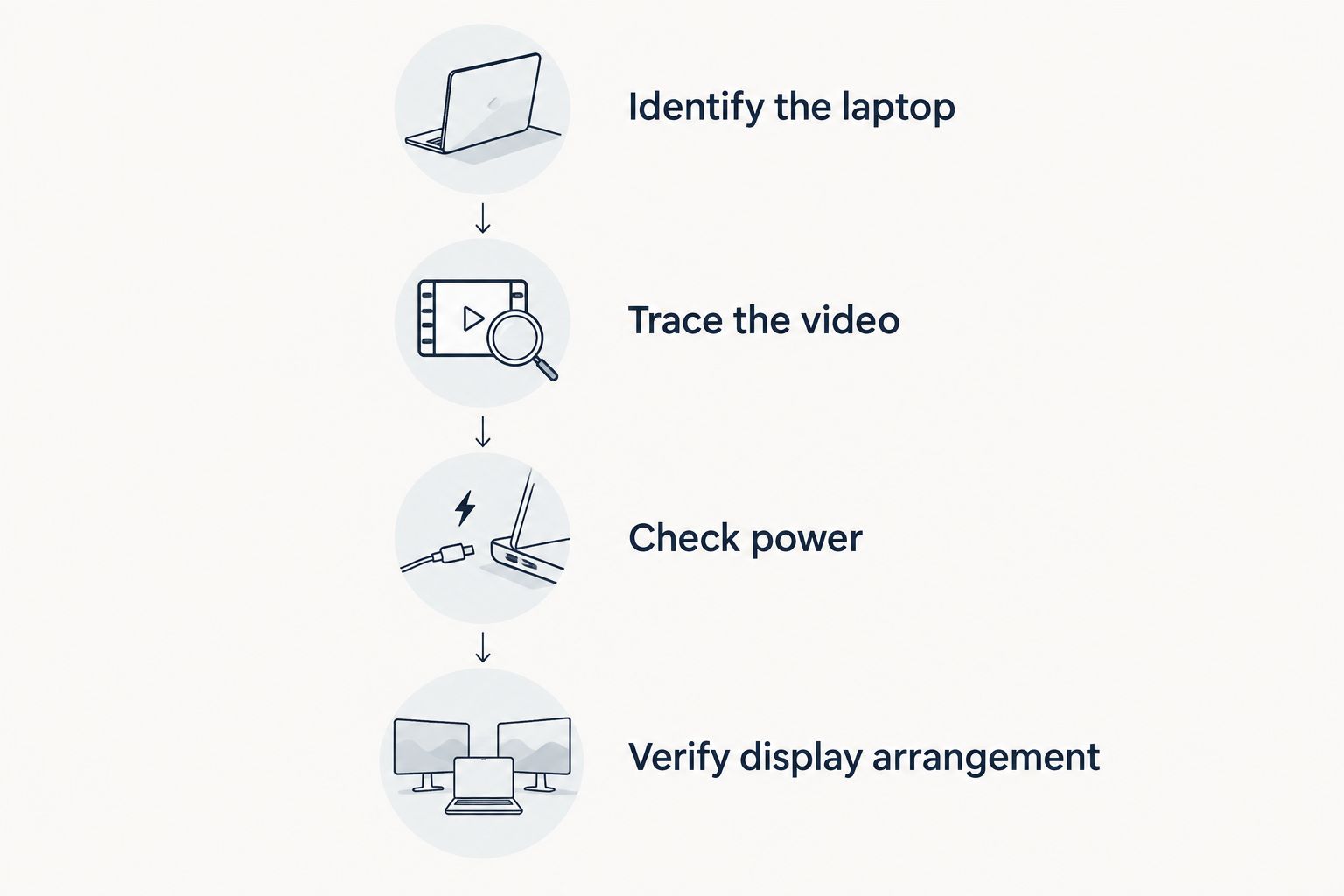
Identify the laptop
Record the exact laptop model and operating system. Find the manufacturer’s specifications for its external display outputs and supported display configurations. Check any relevant restrictions associated with using a dock or adapter.
Avoid relying on a description such as USB-C laptop. It leaves out the capability that matters: whether the intended port sends a compatible display signal.
Trace the video path
Write down the connection from laptop to screen. Identify each cable, adapter, or dock in that path. Confirm whether it carries native video or uses USB graphics.
A direct connection is easier to assess because there are fewer components to verify. An existing dock can still be useful, but its display requirements belong in your compatibility check.
Check power separately
Find out how the screen receives power and what the manufacturer requires. Confirm whether the intended laptop connection supplies it or whether you need a separate source.
This is also a packing decision. Include required power equipment in the kit you expect to carry, rather than judging portability from the folded screen alone.
Verify the display arrangement
Decide whether you need 1 external screen or 2 external screens. Then verify that your laptop supports that arrangement through the proposed connections.
Independent extended displays and mirrored displays serve different purposes. If you want separate workspaces, confirm extended-display support rather than accepting a demonstration that repeats the same image.
What should you check if the screen stays blank?
Check the physical connection before installing software. A blank screen does not identify the cause. Missing video output, inadequate power, an incorrect input selection, or an unsuitable cable can all interrupt the connection.
Use the monitor’s instructions to check power and input selection. Next, confirm that the cable connects to a video-capable laptop port and the appropriate monitor input. If a dock or adapter sits between them, verify its requirements too.
Then open your operating system’s display settings. Look for the external screen and choose the intended display arrangement. A detected monitor showing a duplicate image needs a settings check, not automatically another application.
If the documentation identifies USB graphics, follow its software instructions. Avoid downloading unrelated driver packages simply because a search result promises a portable-monitor fix. Use the hardware manufacturer’s instructions for the connection you own.
Can a work laptop block a portable monitor?
A work laptop can restrict required software installation or device use through organizational policy. A native video connection avoids the need for a separate USB graphics application, but it does not override your employer’s rules.
Before ordering in 2026, ask IT whether external displays are permitted, which outputs you can use, and whether the proposed setup requires approval. Give IT the connection method and exact hardware requirements, not just the phrase portable monitor.
Can a triple-screen attachment work without extra software?
A triple-screen attachment can work without extra software when its documented connections use supported native video outputs and the laptop supports the required external displays. The attachment’s screen count alone does not answer the compatibility question.
Check whether the advertised arrangement means the laptop screen plus additional panels. Then confirm that the external panels can show independent content on your specific computer. Do not infer that capability from the product’s shape.
Does plug-and-play mean there are no drivers?
Plug-and-play does not mean the computer uses no drivers. It generally describes setup that works without you manually installing additional software; your operating system still uses graphics and display support.
Read the connection instructions behind that phrase. Automatic software installation is different from a connection that needs no additional display software at all.
FAQ
Can a portable monitor run without installing software on a work laptop?
Yes, a portable monitor can use a work laptop’s supported native HDMI or USB-C video output without a separate display application. Employer policies and the laptop’s display capabilities still apply.
Does every USB-C port support a portable monitor?
No, a USB-C connector does not guarantee video output. Check the exact laptop port’s specifications and the monitor’s required connection method.
Do I need software for an HDMI portable monitor?
An HDMI portable monitor ordinarily does not need a separate display application because HDMI carries native video. The monitor still needs its specified power connection.
Does DisplayLink need software installed?
DisplayLink requires compatible software on the host computer. Confirm operating-system support and installation permissions before choosing hardware that depends on it.
Can I connect a portable monitor with one cable?
A single compatible USB-C cable can carry video and power when the laptop, cable, and monitor support the required functions. Some setups need a separate power connection.
Why does my portable monitor mirror instead of extend?
Mirroring can result from the selected display settings or a limitation of the connected setup. Choose extended mode in your operating system and confirm that the hardware supports independent external displays.
Should I choose a portable second screen or a multi-screen attachment?
Choose a portable second screen when that amount of extra workspace meets your needs. Choose a multi-screen attachment only after confirming the laptop’s external display support, required connections, and the complete kit you will carry.
One last thing
Test the setup the way you will travel with it. Connect the intended screen through the intended cables, adapters, and power source. Confirm that it extends your desktop rather than merely repeating it.
For your 2026 shortlist, the useful question is not just whether a screen works without software. Ask whether the whole setup works with your laptop, your permissions, and your travel kit. That is the extra workspace you can actually take with you.